

The Impact of Message Delivery Failures on Critical Workflows
Whether you are a traveler coordinating a pickup, a small team sharing a time-sensitive update, or a customer-facing operator answering an inquiry, a failed message can interrupt the next step. The useful response is not panic or repeated tapping. It is a short, documented recovery process that protects the message, checks the most likely local causes, and moves urgent communication to a suitable backup channel when necessary.
This guide provides that process. It separates what you can verify on your device from what only the platform can resolve, and it keeps a failed-send notice from becoming an unsupported conclusion about a contact or account.
The Risks of Repeated Blind Retries
A single retry after checking connectivity is reasonable. Repeated blind retries are not useful evidence that the problem is improving, and they can make it harder to tell which version of an update the recipient eventually received. Pause, preserve the content, record the visible error, and work through one check at a time.
Step 1: Secure the Message Content and Document the Error
Before changing network settings or restarting the device, preserve the content you were attempting to send. Copy a long draft into a suitable notes or document tool and confirm that original attachments still exist outside the failed message. Record the conversation and time without copying private material into an unapproved location.
Preserving Text and Media Assets
If your failed message contains a lengthy, carefully worded text or crucial attachments, you must manually save them outside of the malfunctioning application. Highlight the text, copy it to your device’s clipboard, and immediately paste it into a reliable, offline-capable application, such as a native notes app or a secure word processor. If the message includes photos, videos, or documents, verify that these original files are still safely stored in your device’s local gallery or file manager, rather than only existing within the messaging app’s temporary cache.
For longer work, a consistent approach to organizing personal files across devices can make the source document easier to find. Use storage and access controls appropriate for the information involved; do not move private customer material into an unreviewed personal account simply to work around a send error.
Capturing Diagnostic Evidence
In addition to saving your outgoing content, it is highly recommended to document the exact nature of the failure. Take a clear screenshot of the chat interface displaying the specific error message, the red warning icon, and the time the failure occurred. If the application provides an error code, write it down precisely as it appears.
This record gives you a reference for each troubleshooting step and provides specific information if official support asks for it. Keep the screenshot scoped to the error; crop or cover unrelated names, messages, and account details before sharing it.
Use a Short Incident Note
A simple incident note keeps a small team from repeating the same tests. Record the time, device, connection type, visible error, message type, and last known successful send. Add each troubleshooting action only after it is completed. For example: “3:10 p.m.; phone on hotel Wi-Fi; text and image failed; text last worked at 2:45 p.m.; copied draft; webpage test failed; cellular test pending.”
Keep this note operational, not speculative. Do not label the cause as blocking, suspension, an outage, or a damaged account unless the platform provides that information. If the message contains customer or account data, store the note only where the team is permitted to keep that information.
Step 2: Systematically Diagnose the Local Environment
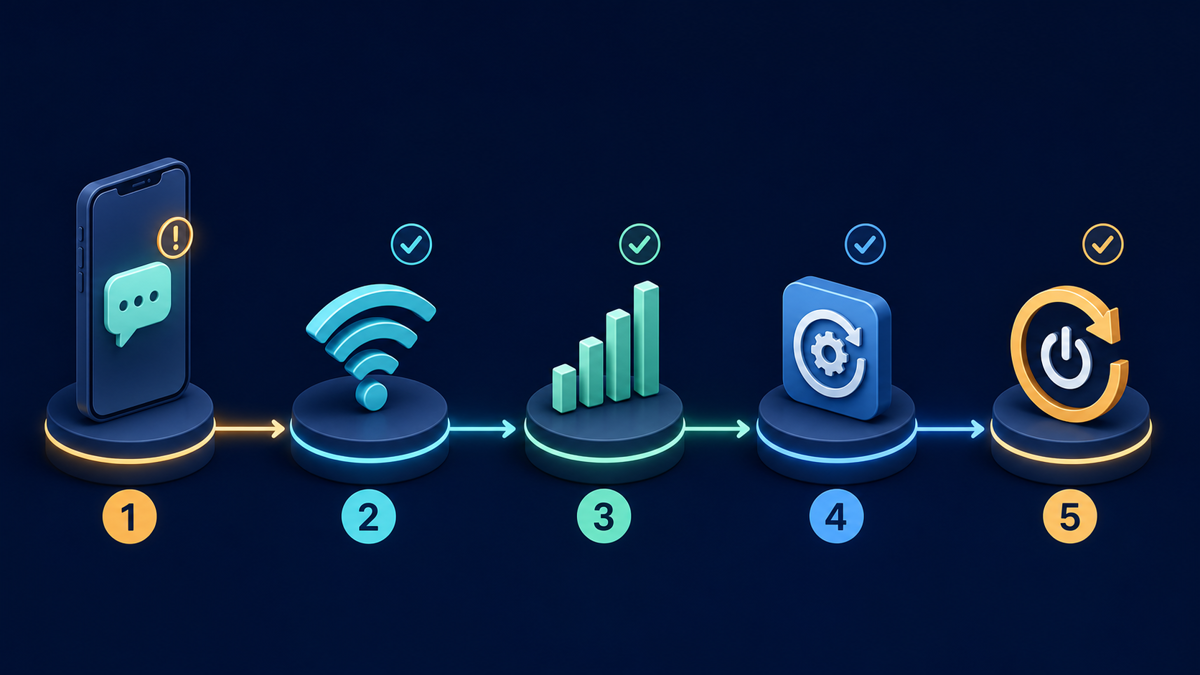
Once the content is preserved, begin with conditions you can directly test: the device and its current network connection. Keep a short note of each change and result. That record prevents repeated steps and helps distinguish a local failure from a platform-side issue.
Evaluating Network Integrity for Travelers and Remote Teams
A device can show a Wi-Fi or cellular signal even when data is not moving reliably. Test a simple webpage or another low-bandwidth service. If appropriate for your location and data plan, compare Wi-Fi with cellular data. Avoid changing several settings at once; one change followed by one test produces clearer evidence.
Addressing Device and Application State
If the connection test passes, close and reopen the messaging application, then check the official app store for an update. Restarting the device is another bounded test. Be cautious with options labeled clear data, reset, uninstall, or delete: their effect varies by device and application, and they may remove local information. Confirm that important content is preserved before using them.
Step 3: Navigating Platform-Side Restrictions and Errors
When you have definitively ruled out local network problems and device-level software glitches, the investigation must shift outward. Sometimes, the inability to send a message has absolutely nothing to do with your hardware or connection; rather, it is a symptom of a restriction, limitation, or outage on the platform’s server side.
Outages Versus Account-Specific Limitations
Check the platform’s official status and help resources for a known outage or current incident. Also review any notice shown inside the account. A failed-send indicator alone does not establish whether the cause is an outage, an account limitation, a recipient-specific setting, or a local device problem.
Demystifying Common Error Indicators
When evaluating persistent errors, it is important to recognize that a failure to send does not inherently prove that someone has blocked the sender. A multitude of variables, from temporary server outages to localized account restrictions, can trigger these alerts. For a deeper dive into the technical nuances of these delivery interruptions, consulting a detailed Messenger send-failure troubleshooting guide can help you distinguish between transient application glitches and persistent media attachment errors without jumping to conclusions about account status.
Understanding these distinctions prevents unnecessary anxiety and prevents users from making incorrect assumptions about their professional or personal relationships. The architecture of modern messaging systems is incredibly complex, and a “not sent” indicator is simply a generic catch-all for dozens of potential behind-the-scenes complications.
Step 4: Pivoting to Alternative Communication Channels
There comes a point in every troubleshooting process where continuing to diagnose the issue yields diminishing returns. If you have secured your message, verified your local network, checked for global outages, and the transmission still fails, you must pivot. Clinging to a failing platform when a critical deadline looms is a strategic error. A resilient workflow demands flexibility and the readiness to utilize alternative channels.

Professional Transitions to Backup Methods
Switching communication mediums requires a delicate touch, especially when dealing with clients or external partners. You do not want to appear disorganized or cause confusion by suddenly bombarding them from an unrecognized phone number or email address. When you make the transition, clarity is paramount. Your first message on the backup platform should immediately identify who you are and briefly, professionally explain the shift.
For example, a customer-facing operator moving to an agreed backup channel might write: “Hello, this is [Name] following up on our previous conversation. The chat message did not send, so I am using the backup contact method we have on file.” Keep the note factual and do not promise delivery until the recipient confirms it.
Match the Backup Method to the Message
An urgent pickup change, a routine project update, and a private account document should not automatically use the same fallback. Consider urgency, sensitivity, attachment size, recipient consent, and whether the alternate account is already trusted. If no backup method was agreed in advance, send only the minimum context needed to identify the conversation and ask the recipient how they prefer to continue.
Selecting Reliable Secondary Platforms
Agree on a backup contact method before it is needed. The right option depends on urgency, sensitivity, recipient expectations, and the tools both parties already use. If a team is considering a new service, start by evaluating online services before signing up, including how access, retention, support, and account recovery work.
Step 5: Structuring an Escalation to Official Support
If a delivery failure persists over multiple days, or if you suspect your account has been unfairly restricted by an automated spam filter, you will eventually need to escalate the issue to the platform’s official support channels. Reaching out to official support can be a slow process, which is why it is positioned as the final step after all local troubleshooting and alternative communication efforts have been exhausted.
Assembling the Required Information
When you contact official support, you must present a clear, documented case. This is where the diagnostic evidence you gathered in Step 1 becomes invaluable. Do not submit a generic ticket that simply states “my messages won’t send.” Instead, construct a detailed report that outlines exactly what you were doing when the failure occurred, the specific error codes you received, and the troubleshooting steps you have already taken.
Attach the error screenshots if the support form allows it. State whether the failure affects all contacts or one conversation, and whether it occurs with text, media, or both. List the checks you actually completed. Do not include passwords, authentication codes, private customer content, or unrelated account data.
Managing Expectations During Resolution
Response times and escalation paths vary. Keep the support reference number, answer requests for relevant details, and use the agreed backup contact method while the issue remains open. Avoid opening multiple identical cases unless official support directs you to do so.
Adhering to Platform Guidelines
While the case is open, review the platform’s current official terms and messaging guidance. Compare those rules with the team’s documented outreach and automation practices. If the platform identifies a policy issue, correct the exact behavior it names rather than guessing at an account restriction.
Conclusion: Building Resilience in Digital Communication
A message failing to send is an inevitable reality of working within complex digital ecosystems. Whether caused by a weak cellular signal at an airport, a corrupted cache file, or an overzealous automated spam filter, these interruptions will eventually occur. The difference between a minor hiccup and a major operational crisis lies entirely in your response.
A methodical response is easier to verify than a string of blind retries. Preserve the message, record the error, test one local cause at a time, avoid unsupported conclusions, and use a reviewed backup contact method when the communication cannot wait. The goal is not to promise perfect delivery; it is to make the next safe action clear.

0 Comments